 knacksnews
How to Capitalize All Letters in Word, Excel, and Other Apps: A Complete Guide
Many people use Word, Excel, and other tools for writing daily. One can save time by switching lowercase to uppercase. Using the right technique benefits whether you are creating resumes or editing reports. Every program approaches capitalizing all letters differently. Excel employs formulae; Word contains built-in features. Google Docs and other apps provide similar methods. Acquiring knowledge of these will help your workflow.
Hand rewriting of words is not necessary. Just follow the basic instructions available in every program. It's swift and powerful. This guide explains how to make the most of each tool effectively. You can pick it up quickly, whether professional or student. Your text turns all capitals with a few clicks or formula runs. Use these simple tools to raise your output right now.
How Do You Capitalize All Letters in Microsoft Word?
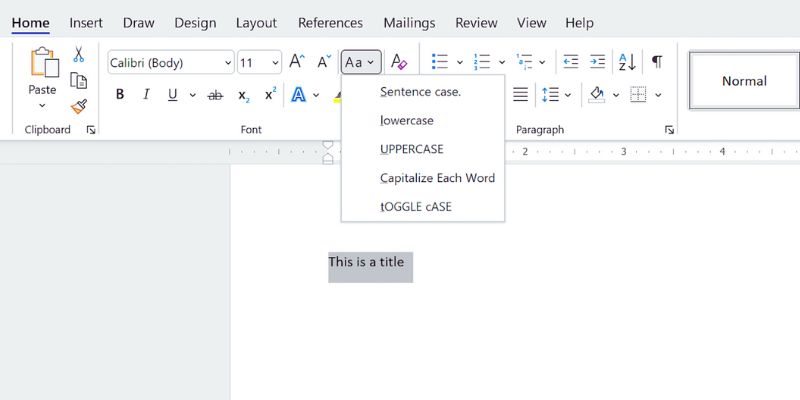
Tools included in Microsoft Word allow one to alter text formatting. Choose the text you wish to change first. Visit the "Home" tab found on the ribbon. Look for the "Change Case" button among the Font group. Click to launch a drop-down list of choices. To convert every letter into a capital, select "UPPERCASE". The list will be updated immediately; use the shortcut Shift + F3 for faster access. To cycle through case styles, regularly use the shortcut. It works with entire paragraphs or just a single word.
It saves much time for lengthy documents. You can also create styles whereby uppercase is always used. Verify the "All caps" box using the Format > Font window. It helps your document have consistent formatting all around. Use it as necessary, though uppercase text is harder to read in large blocks. Use it lightly for headings or emphasis. Once one understands where to click, Word makes formatting simple.

How Do You Capitalize All Letters in Microsoft Excel?
Excel deals with text differently from Word. It does not have a direct uppercase button. Use formulas to translate your text. Starting in a fresh column, type =UPPER(cell). Change "cell" to the suitable cell reference. Equally, =UPPER(A1) will convert text in A1 to all caps. Press Enter to view the uppercased output. Then, apply the formula to additional rows. Use Paste Special > Values to preserve just the outcome. You can so remove the original column.
Excel also facilitates LOWER and PROPER, among other things. LOWER modifies all text to small characters. PROPER caps every word's initial letter. Keep with UPPER for complete capitalizing. It's straightforward and successful, and this Excel document needs neither add-ons nor plugins. Every tool is easily reachable and built-in. You'll get the desired result by following these steps.

Capitalizing All Letters in Google Docs
Google Docs behave similarly to Microsoft Word. Access your file and choose the text. Click then on the "Format" menu at the top. After "Text," go for "Capitalization." Out of the options list, choose "UPPERCASE". Your selected text will instantly change to uppercase. It operates on either only single lines or complete paragraphs. Using add-ons offers even another choice for additional control. Try the "Change Case" add-on available from Google Workspace Marketplace.
One-click will let you apply case changes following installation. Batch edits benefit from add-ons. Google Docs also fits quite nicely with keyboard shortcuts. Though not a Shift + F3 option, it syncs readily with Google Sheets. If your text is on a sheet, apply the UPPER feature in Excel. Sheets and documentation sometimes cooperate. For formula-based changes, use Sheets; copy results into Docs. It preserves formatting cleanliness and saves time.
Changing All Letters to Uppercase on Mac Devices
Users of Mac computers have built-in shortcuts to switch text cases. In Pages, underline the passages you must alter. Go to Format > Font, then select Capitalization. To implement the modification, choose "All Cap." Changes in formatting happen right away. Pages also show title cases and tiny caps. Choose the correct one for your requirements.
Proceed to numbers or keynote using the same techniques. Similar formatting tools abound in Mac programs. One further approach is to leverage macOS shortcuts. Custom shortcuts can be assigned by third-party apps such as BetterTouchTool. You may thus flip cases with one single push. On Mac, Word or Excel follows the same approach as Windows. Use Shift + F3 in Excel's formulas or Word. Mac users have the same tools at hand. The arrangement can look different. Once you learn the basics, you can apply them anywhere.
How to Capitalize All Letters Using Online Tools?
Several internet programs provide fast text conversion. Popular are tools like TextFixer.com or ConvertCase.net. Copy your text and then put it into the toolbox. Click convert once you have chosen the "UPPERCASE". Your text shifts right away. Copy the output back into your document. Fast and free online tools abound. It is not necessary to set accounts or install anything. Run them on any gadget with internet capability.
They are perfect for one-time corrections or small jobs. Certain sites include extra features such as a sentence or title case, which is beneficial for flexible formatting. Others advocate file uploads or batch conversion. Edit big text files fast using them. If your program lacks built-in capabilities, online converters save time. Some tools even offer offline access through browser extensions. Double-check formatting always after pasting the output. Some tools might remove formatting. For more reliable results, use reputable websites.
Mobile Apps for Capitalizing All Letters
Mobile apps also enable capital letter text formatting. Within Microsoft Word for mobile, tap to choose text. From the toolbar, select the " Format" icon. After "More options," "Change Case." Apply the style using "UPPERCASE." The change starts right away. Mobile Google Docs also lets you format cases. Tap text, open the format menu, then select "Capitalization." Among the alternatives, pick "UPPERCASE".
A few mobile keyboards, like Gboard, provide auto-capitalization. For caps lock mode, tap the Shift key twice to activate caps lock. Type normally; all letters will be capitalized. Case-control is provided by outside text editors such as iA Writer and Jotter Pad. Look on the text menu for case-changing choices. These instruments are very handy for mobile editing. Put them to use for notes, essays, or social media postings. Mobile tools provide quick access and are helpful. Change your content fast by just following basic guidelines. Consistency keeps one professional.
Conclusion:
One basic yet effective formatting device is capitalizing all letters. Word, Excel, and other programs all have simple ways of operation. Depending on your program, use menus, shortcuts, or formulas. Online tools and smartphone apps simplify things still more. You don't need advanced skills to do this. Save time and keep formatting across several systems. Always double-check for correctness. Uppercase should not be overused since it could make reading difficult. Use it for headlines or emphasis only. Discover the correct approach in every application to streamline your working routine.
On this page
How Do You Capitalize All Letters in Microsoft Word? How Do You Capitalize All Letters in Microsoft Excel? Capitalizing All Letters in Google Docs Changing All Letters to Uppercase on Mac Devices How to Capitalize All Letters Using Online Tools? Mobile Apps for Capitalizing All Letters Conclusion:Related Articles

5 Reliable Tools to Convert H.264 to MP4 on Your PC
How to Capitalize All Letters in Word, Excel, and Other Apps: A Complete Guide

How to Share Audio on Zoom: The Step-by-Step Guide for Beginners

Top 8 Free Video Editors Reviewed and Compared in Detail
Choosing Between MP3 and MP4: A Guide to Quality and File Size

How to Use Inspect Element in Chrome, Safari, and Firefox: A Beginner's Guide

How to add an email signature in Outlook: A Step-by-Step Guide

How to Create and Customize Airtable Views for Better Organization

Top 10 Effective Converters to Convert VOB to MP4 in High Quality

How to Effortlessly Convert MOV to MPEG and Vice Versa

Effortless AVCHD to MP4 Conversion Without Losing Quality